> ## Documentation Index
> Fetch the complete documentation index at: https://www.docs.wazap.dev/llms.txt
> Use this file to discover all available pages before exploring further.
# Get WhatsApp Business API Permanent Token
> Step-by-step guide to generate a permanent token for Meta's WhatsApp Business API
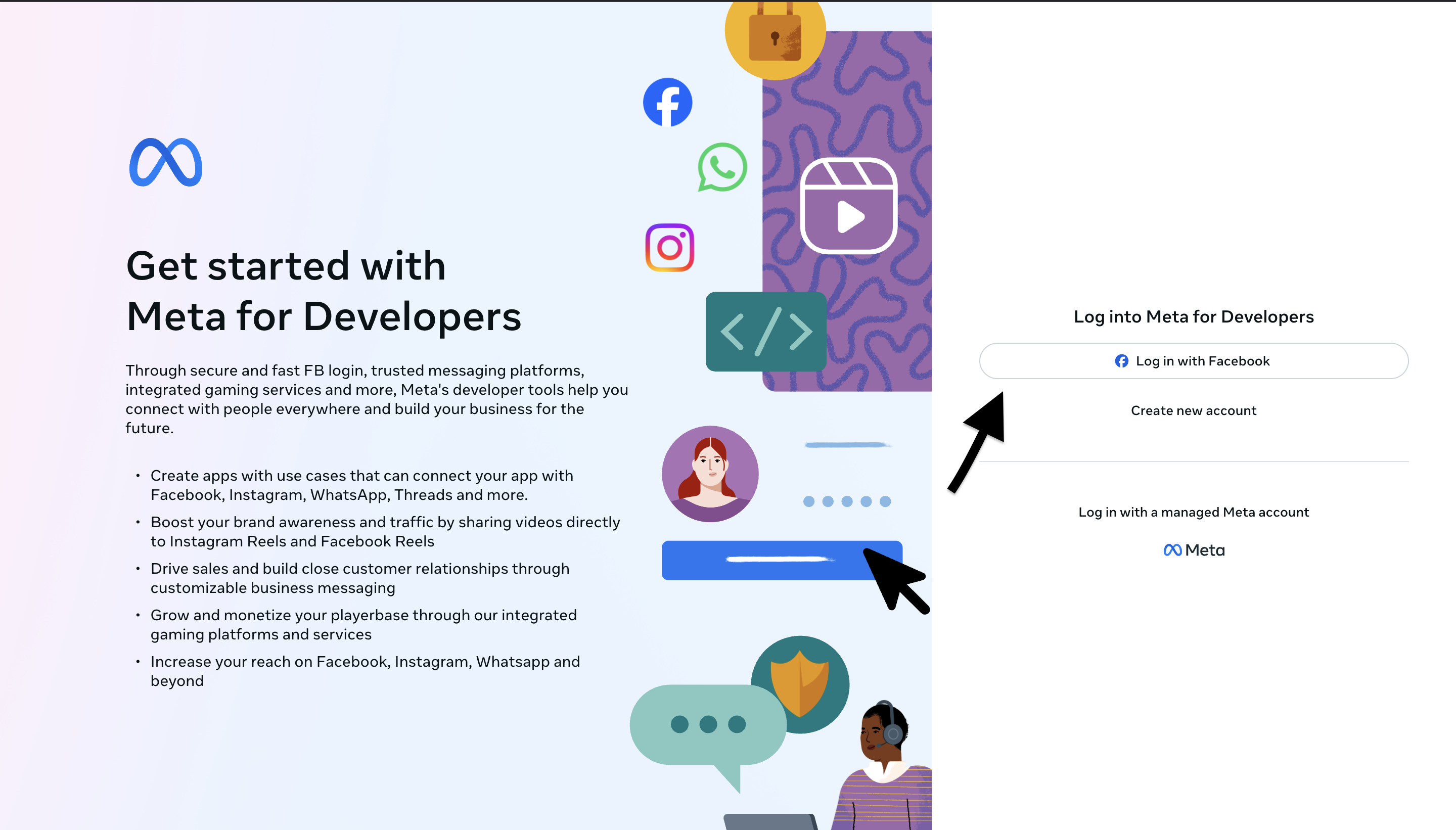
## Step 1: Access Meta's Application Panel
1. Go to [Meta for Developers](https://developers.facebook.com/)
2. Log in with your Facebook/Meta account
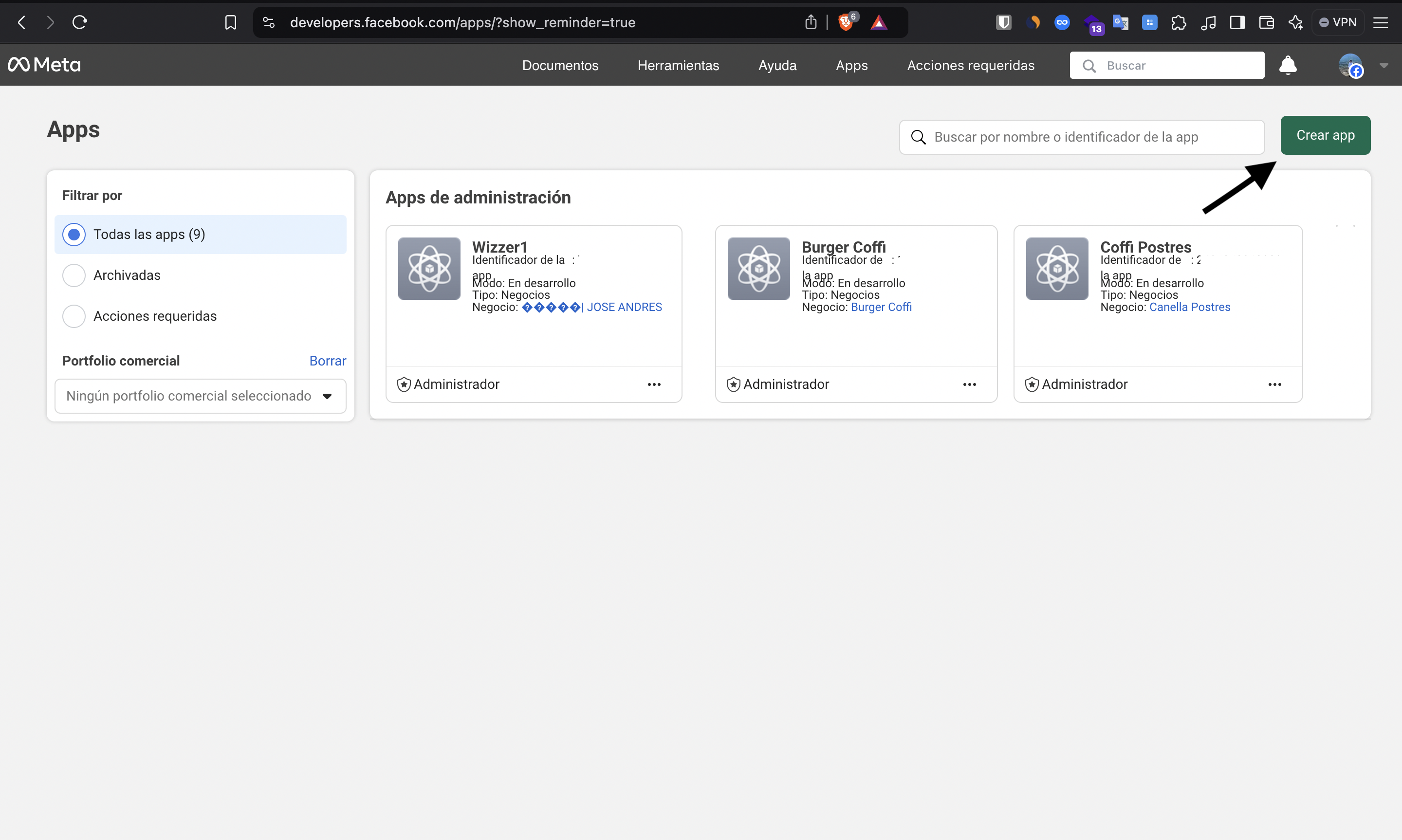
 ## Step 2: Access the Apps Dashboard
1. Once in Meta for Developers, access the Apps dashboard
2. Click **"Create App"** in the top right corner
## Step 2: Access the Apps Dashboard
1. Once in Meta for Developers, access the Apps dashboard
2. Click **"Create App"** in the top right corner
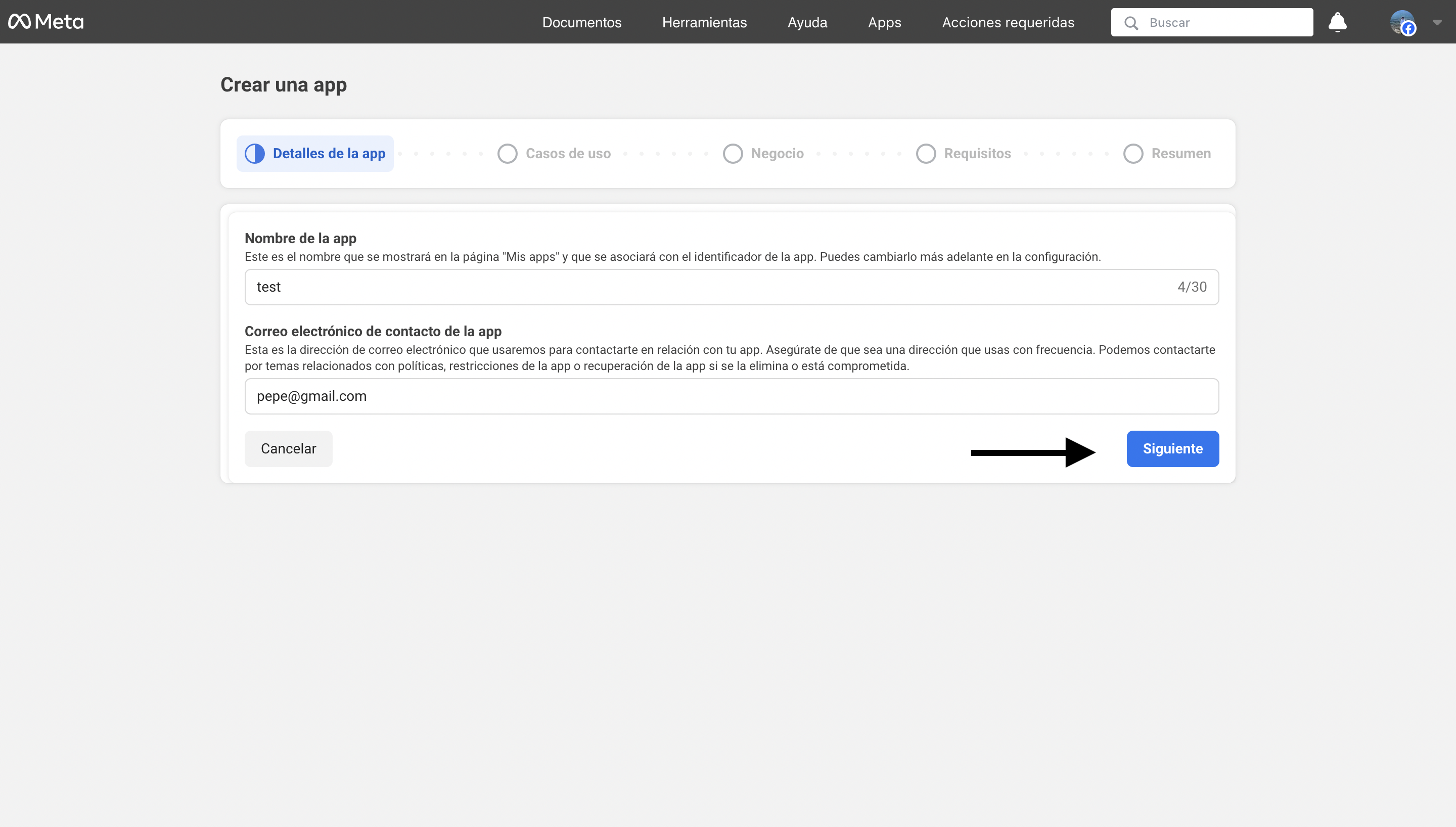
 ## Step 3: Complete Application Details
1. **App name**: Enter a descriptive name for your application
2. **Contact email**: Provide a valid email for notifications
3. Click "Next"
## Step 3: Complete Application Details
1. **App name**: Enter a descriptive name for your application
2. **Contact email**: Provide a valid email for notifications
3. Click "Next"
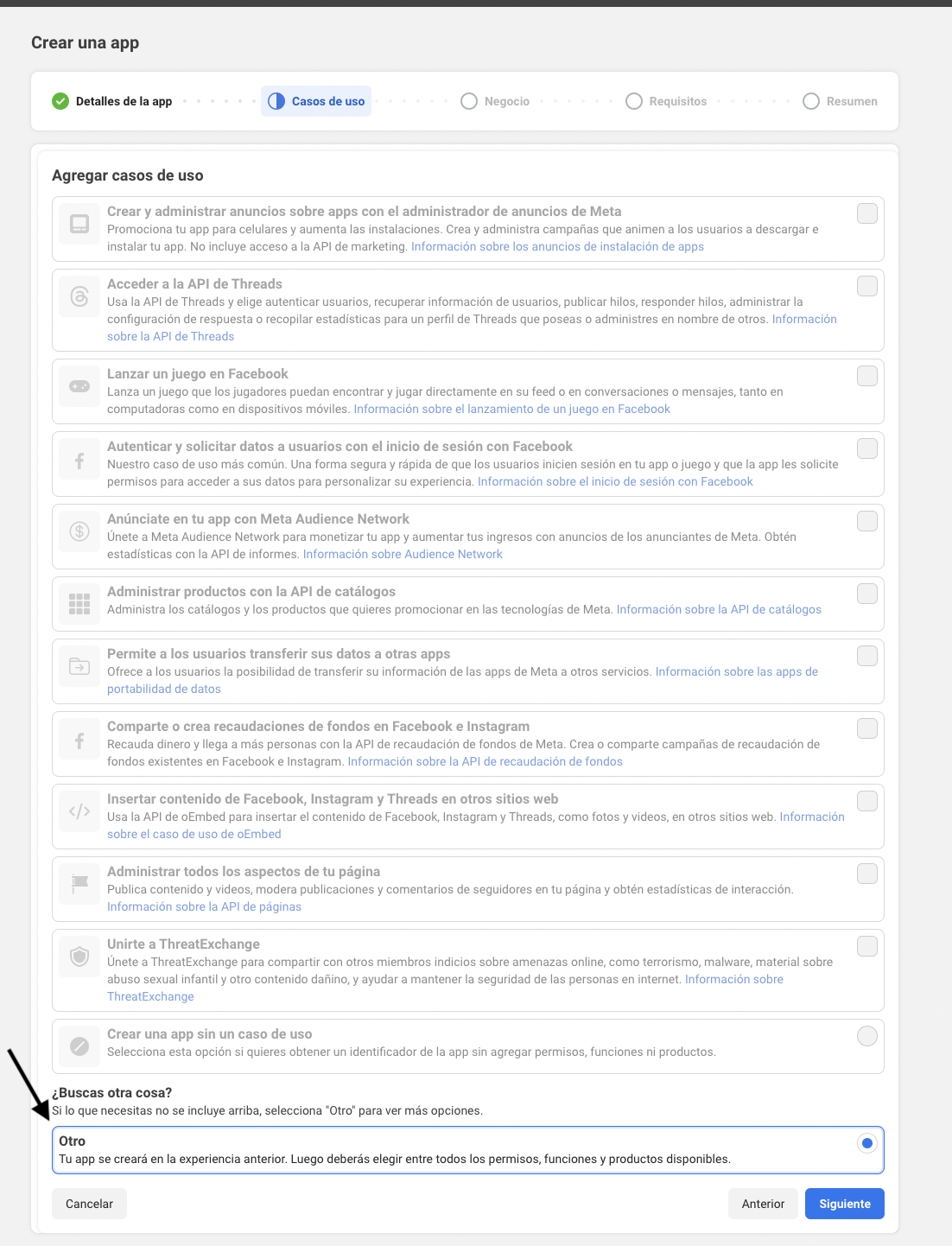
 ## Step 4: Configure Use Cases
1. In the "Looking for something else?" section, select the **"Other"** option
* This will allow you to choose from all available permissions, functions, and products
* This is the recommended option for integrating WhatsApp Business API
2. Click "Next"
## Step 4: Configure Use Cases
1. In the "Looking for something else?" section, select the **"Other"** option
* This will allow you to choose from all available permissions, functions, and products
* This is the recommended option for integrating WhatsApp Business API
2. Click "Next"
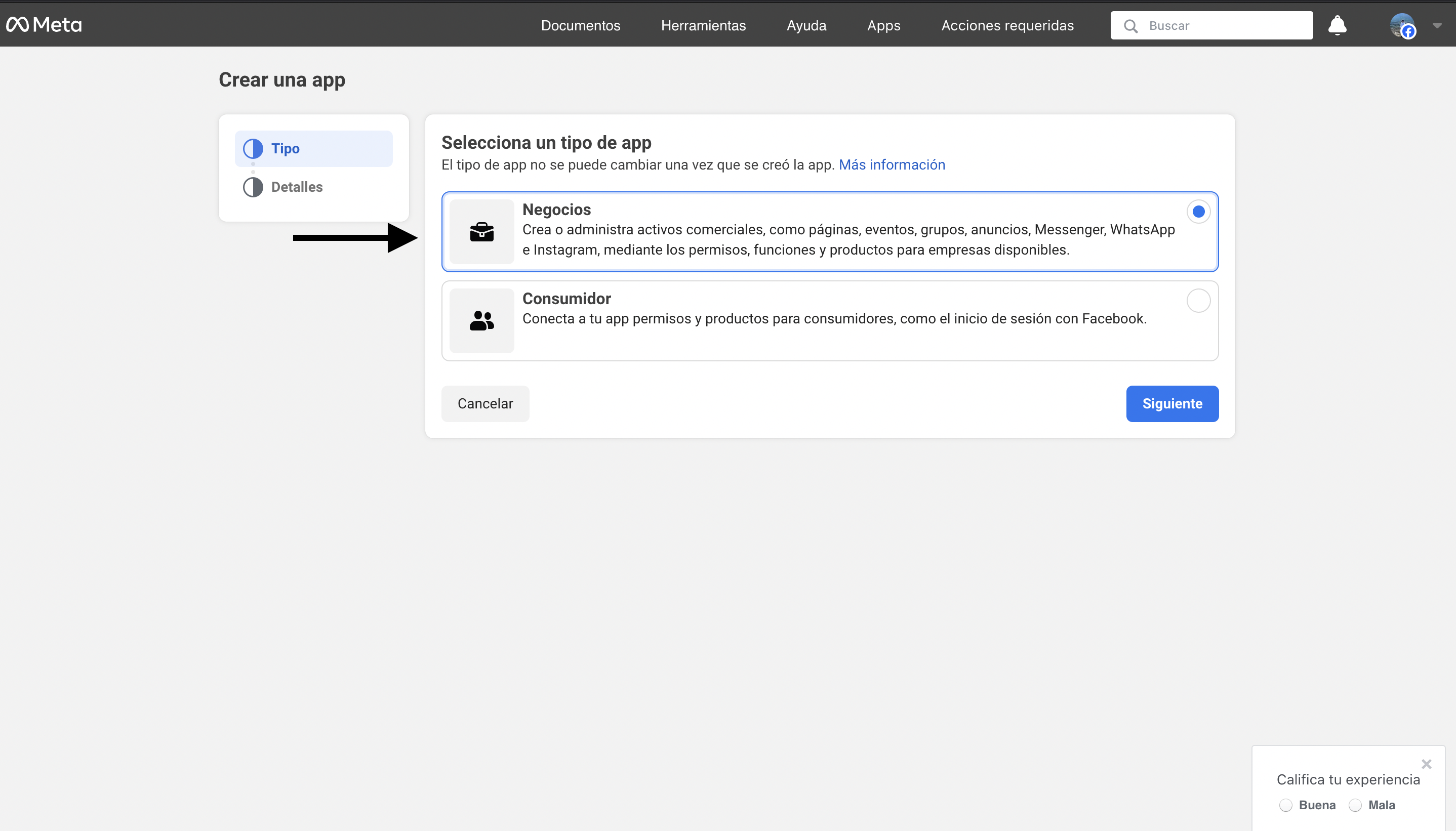
 ## Step 5: Select Application Type
1. Select the **"Business"** application type
2. This type allows you to manage business assets like WhatsApp, Messenger, and Instagram
## Step 5: Select Application Type
1. Select the **"Business"** application type
2. This type allows you to manage business assets like WhatsApp, Messenger, and Instagram
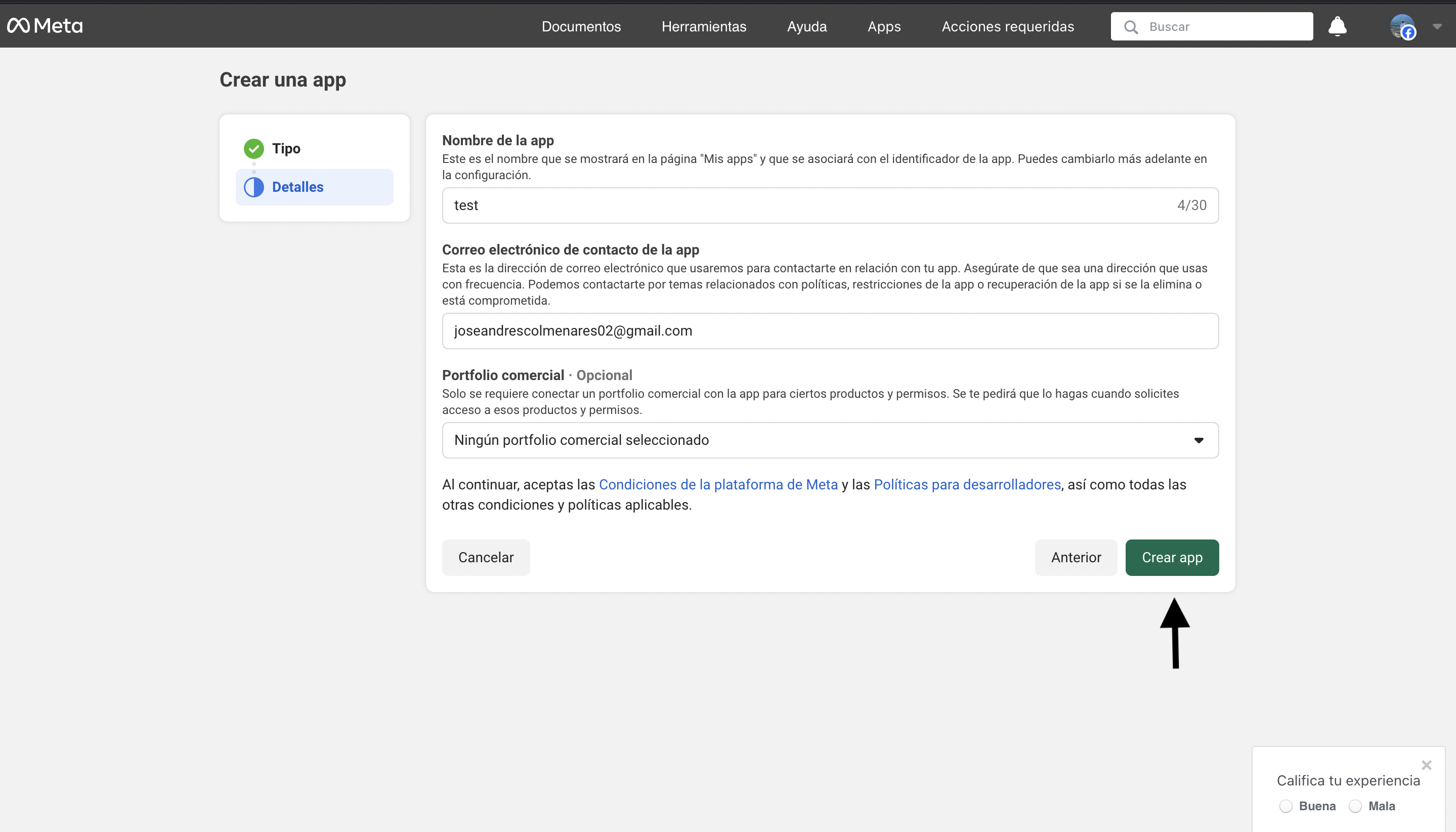
 ## Step 6: Final Application Configuration
In this step you will complete the creation of your application:
1. **Application name**: Confirm or update your app name
2. **Email**: Verify that the contact email is correct
3. **Business portfolio**: Assign an existing business portfolio or create a new one
* **Important**: A business portfolio is required to obtain a permanent token
* If you don't have one, you can create it during this process
## Step 6: Final Application Configuration
In this step you will complete the creation of your application:
1. **Application name**: Confirm or update your app name
2. **Email**: Verify that the contact email is correct
3. **Business portfolio**: Assign an existing business portfolio or create a new one
* **Important**: A business portfolio is required to obtain a permanent token
* If you don't have one, you can create it during this process
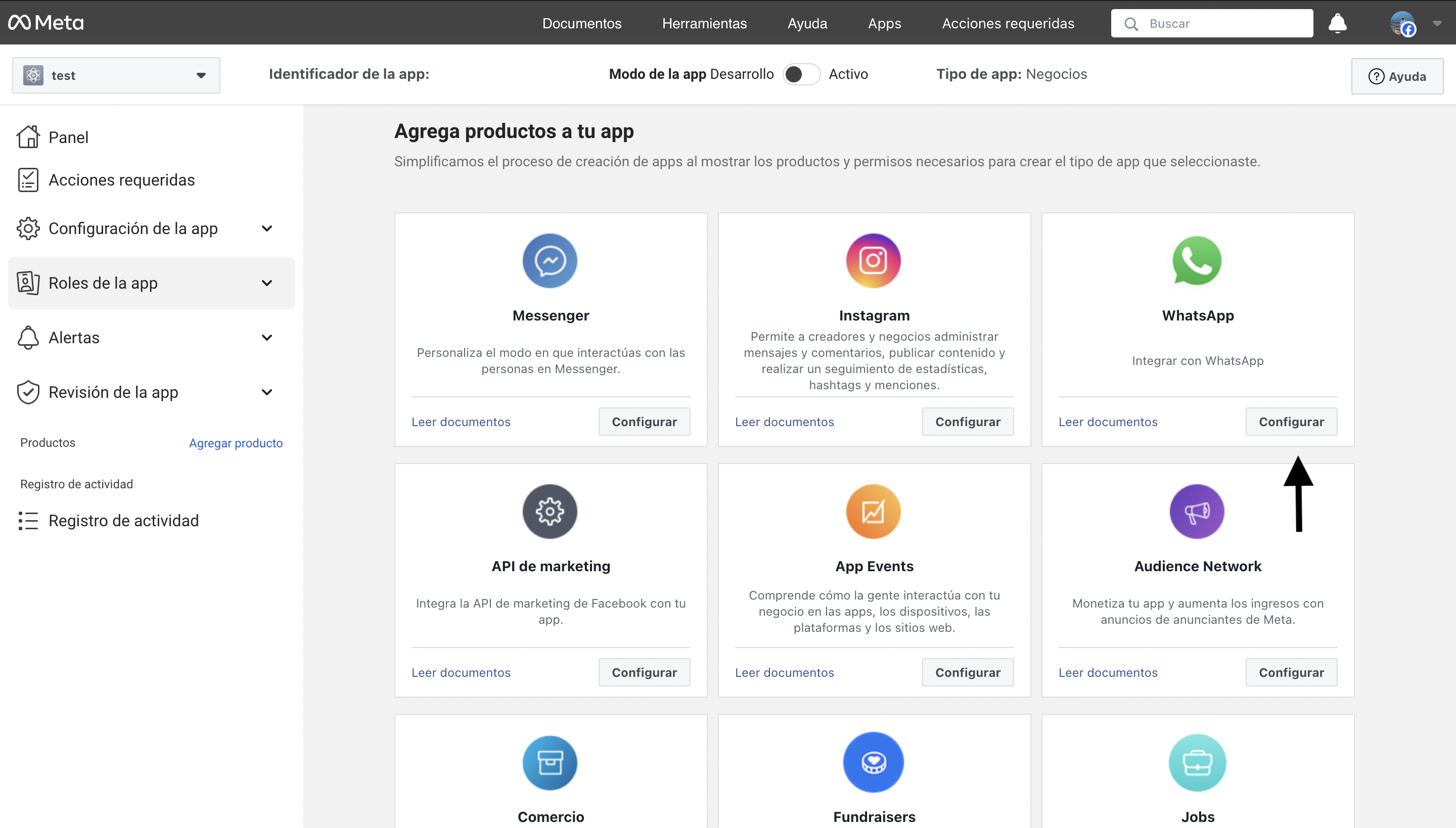
 Once the application is created:
1. Configure the WhatsApp product in your application
2. Access the WhatsApp Business API configuration
Once the application is created:
1. Configure the WhatsApp product in your application
2. Access the WhatsApp Business API configuration
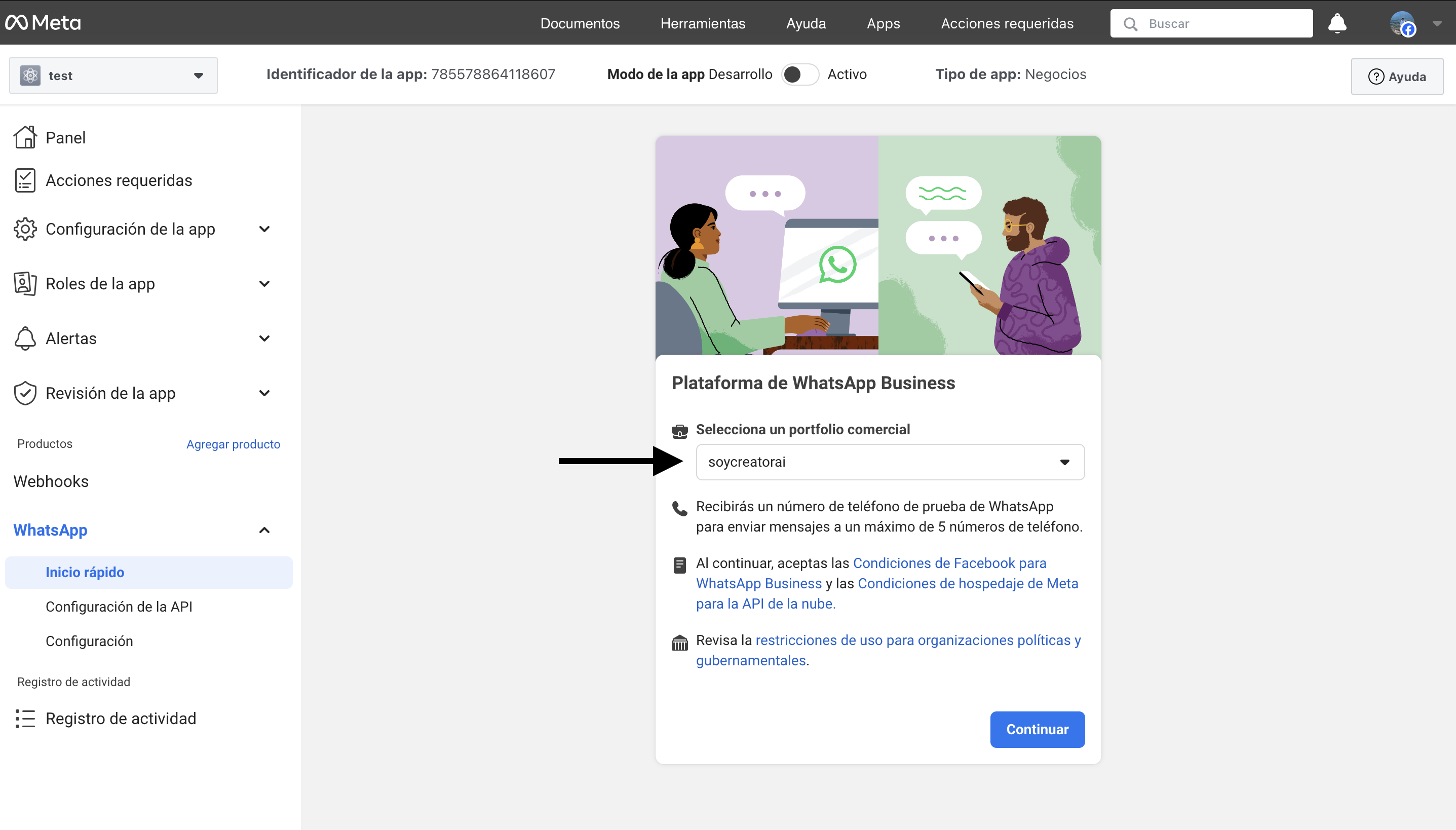
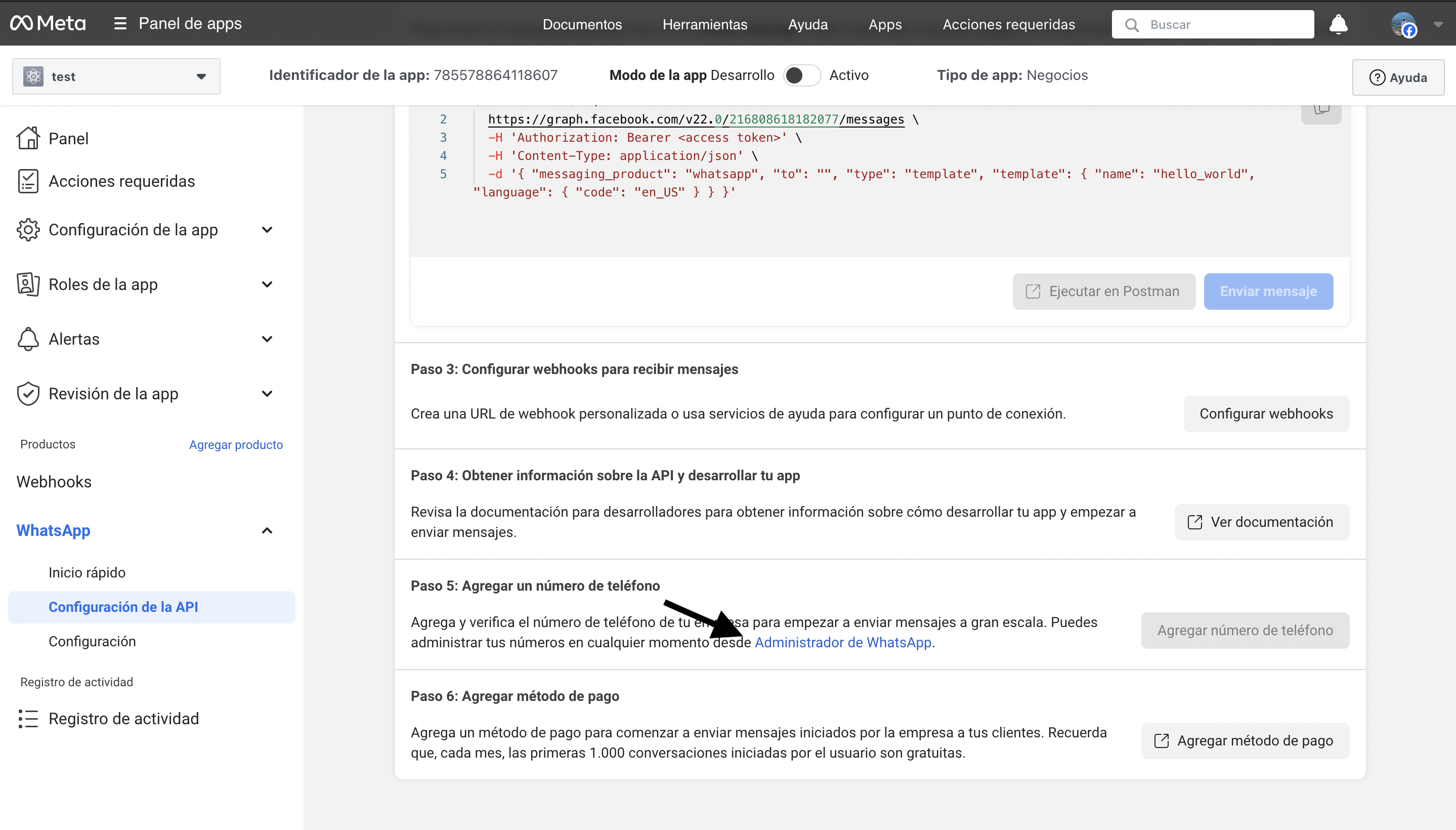
 After adding WhatsApp, you will be directed to the API configuration:
1. **Configure webhooks**: Define the URL where you will receive notifications
2. **Add phone number**: Register your business number
3. **Add payment method**: Configure billing
**Note**: If you didn't select a business portfolio previously, you will need to assign it in this step. Click "Continue" to proceed.
After adding WhatsApp, you will be directed to the API configuration:
1. **Configure webhooks**: Define the URL where you will receive notifications
2. **Add phone number**: Register your business number
3. **Add payment method**: Configure billing
**Note**: If you didn't select a business portfolio previously, you will need to assign it in this step. Click "Continue" to proceed.
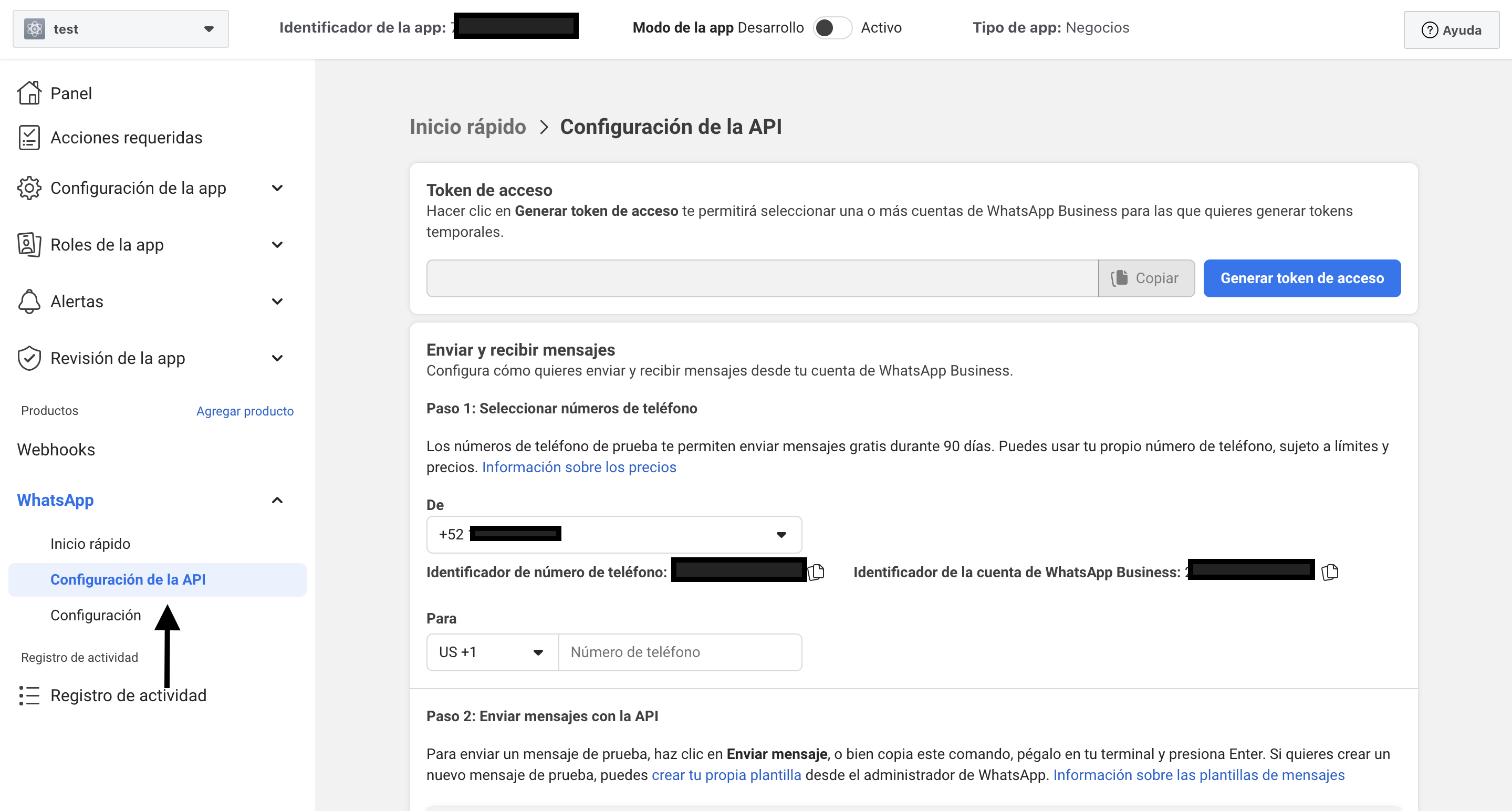
 ## Step 7: Access API Configuration
1. Go to **API Configuration**
## Step 7: Access API Configuration
1. Go to **API Configuration**
 2. Go to **WhatsApp Manager**
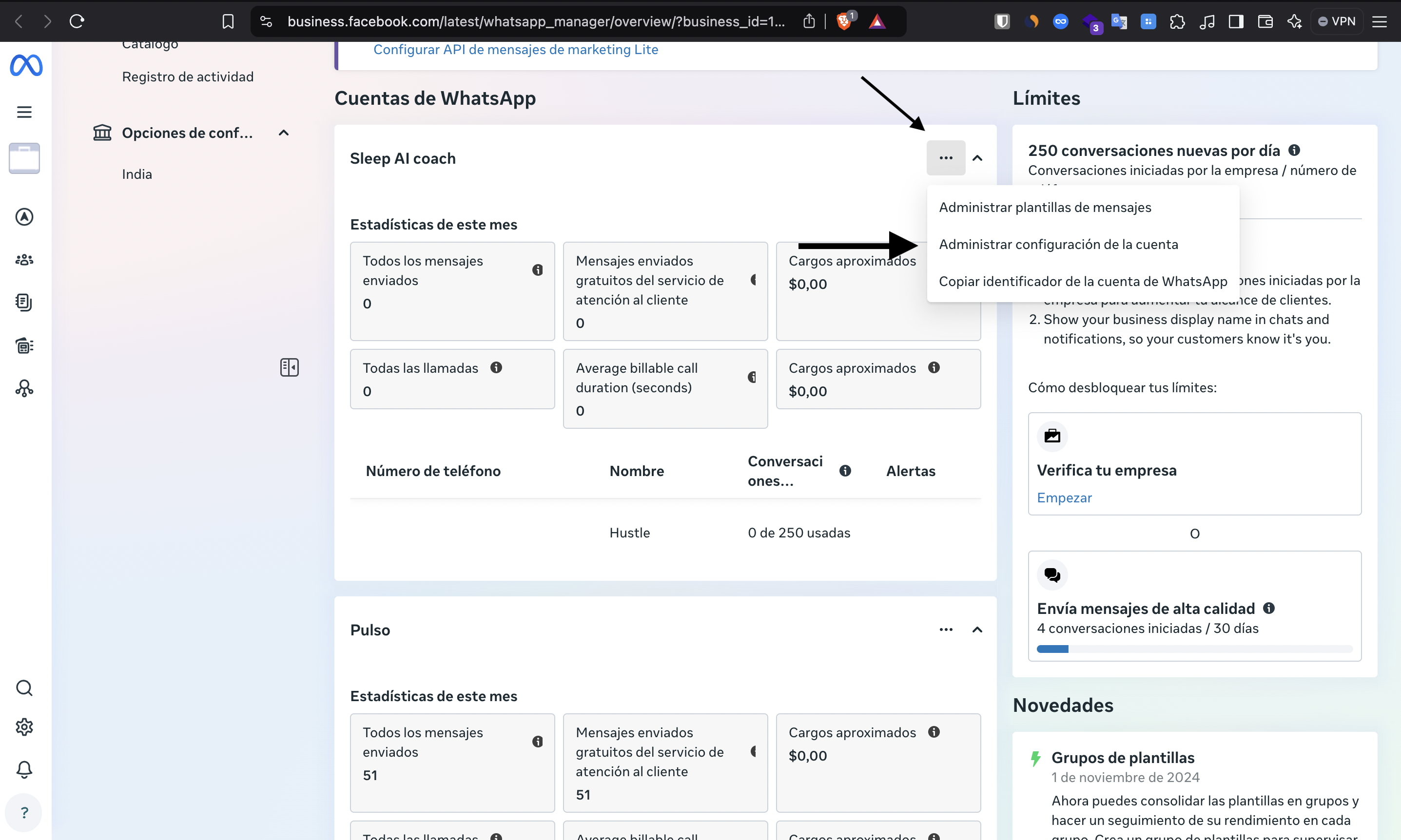
 3. Click the **three dots** (options menu)
**Important requirement**: You must have a phone number associated with the account before continuing
4. Select **"Manage account settings"**
3. Click the **three dots** (options menu)
**Important requirement**: You must have a phone number associated with the account before continuing
4. Select **"Manage account settings"**
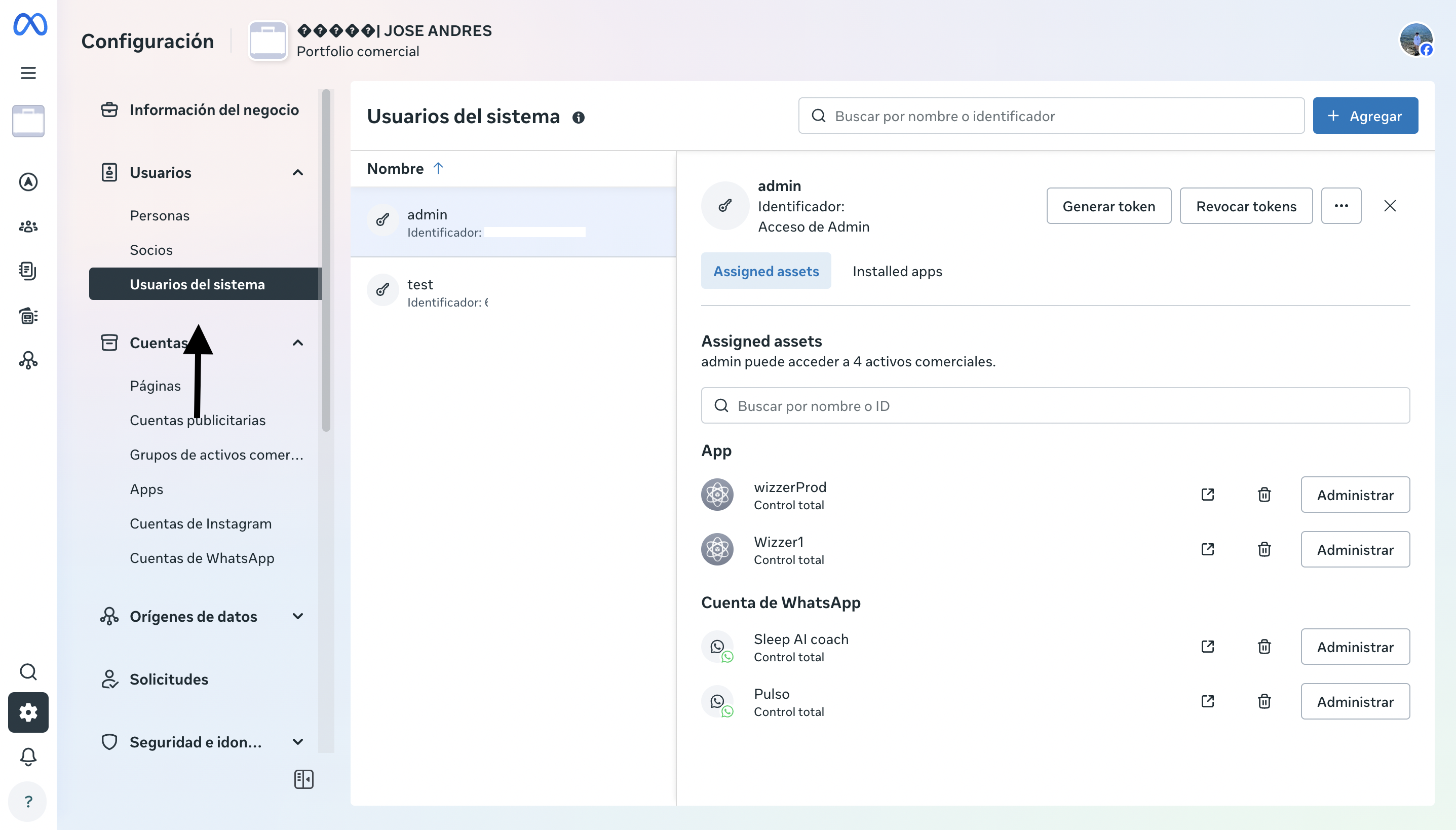
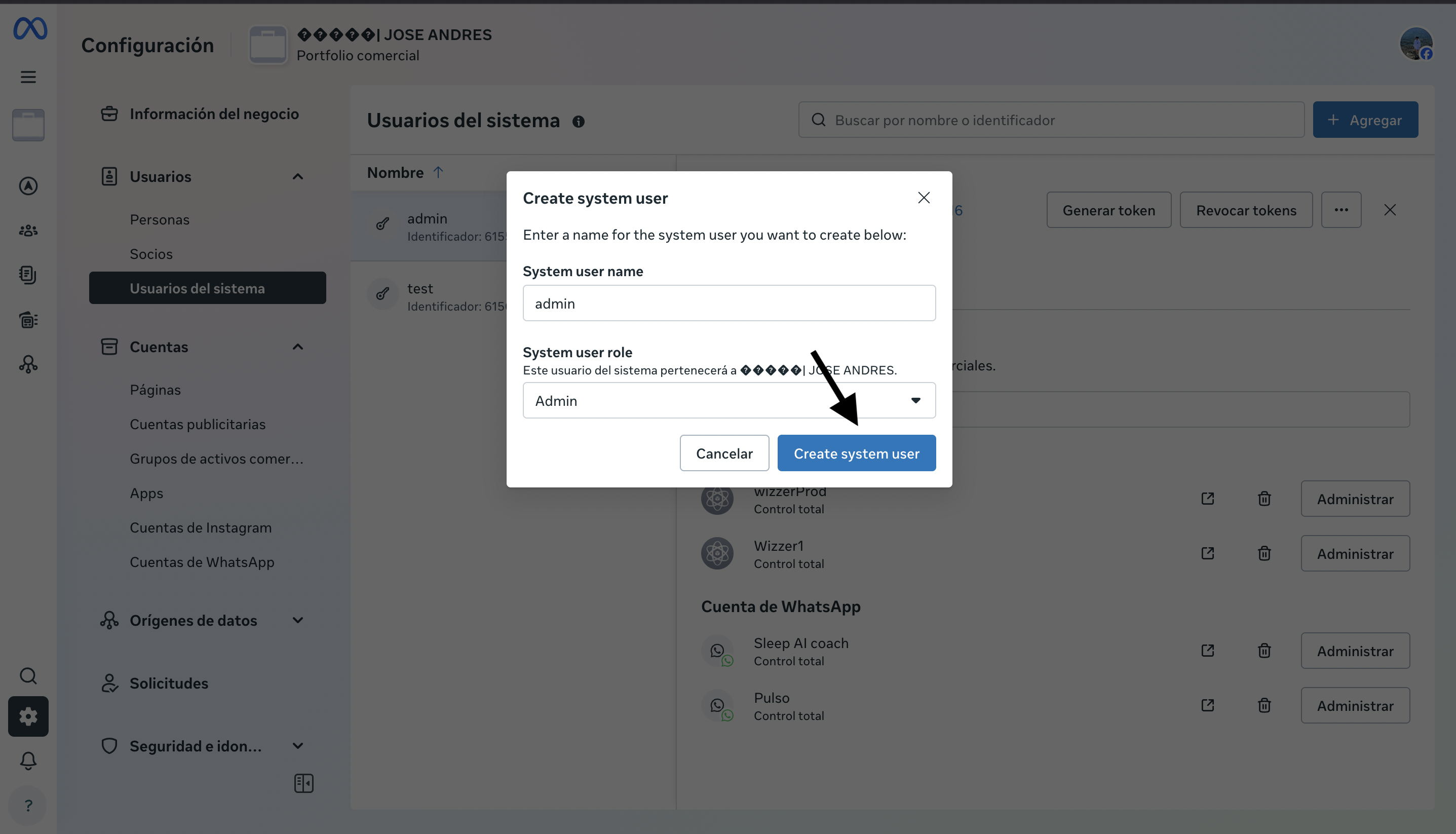
 ## Step 8: Create a System User
1. Go to the **"System Users"** section
2. Create a new system user with **"Administrator"** role
3. Click **"Create system user"**
## Step 8: Create a System User
1. Go to the **"System Users"** section
2. Create a new system user with **"Administrator"** role
3. Click **"Create system user"**
 ## Step 9: Configure WhatsApp Account Access
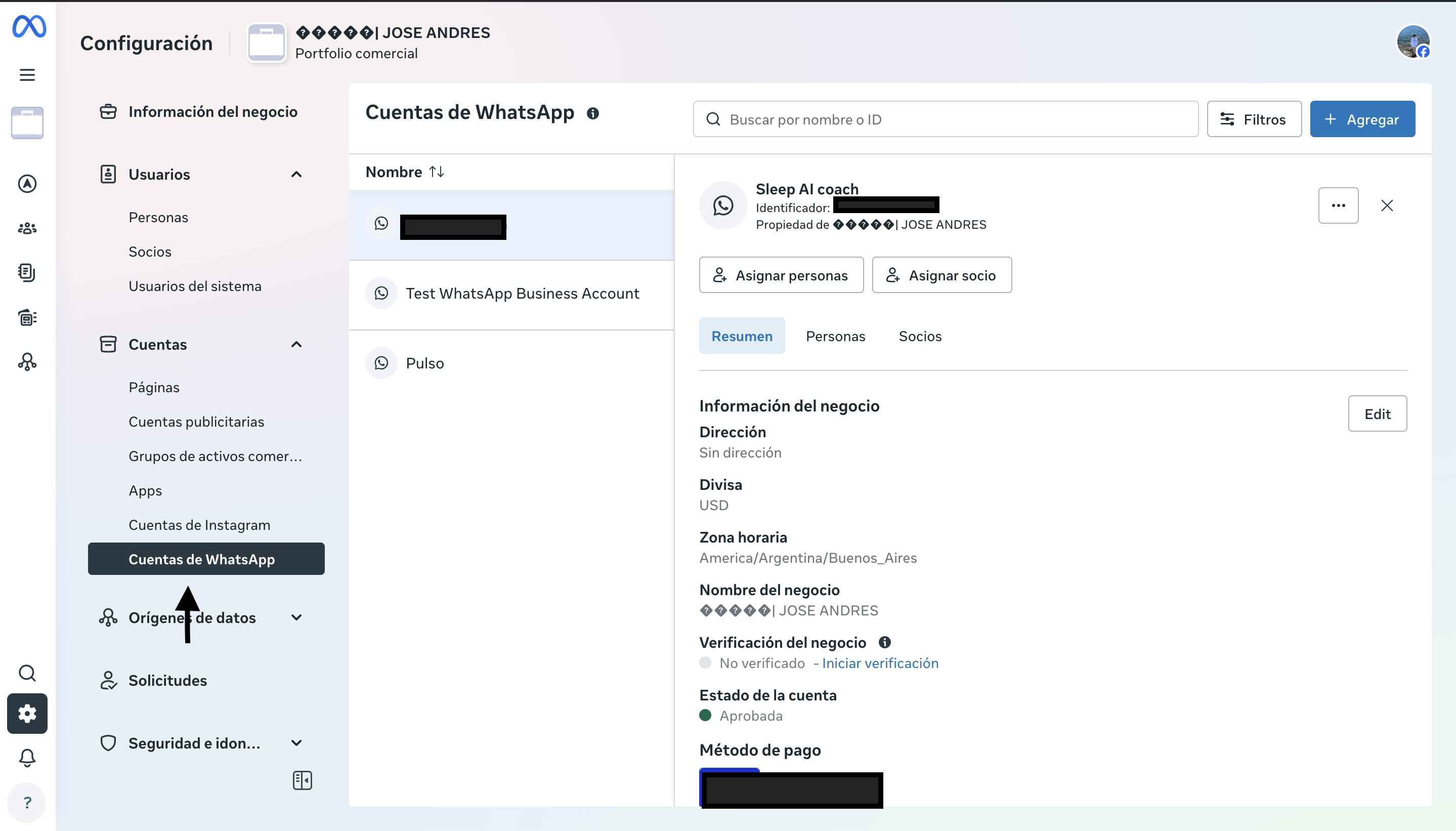
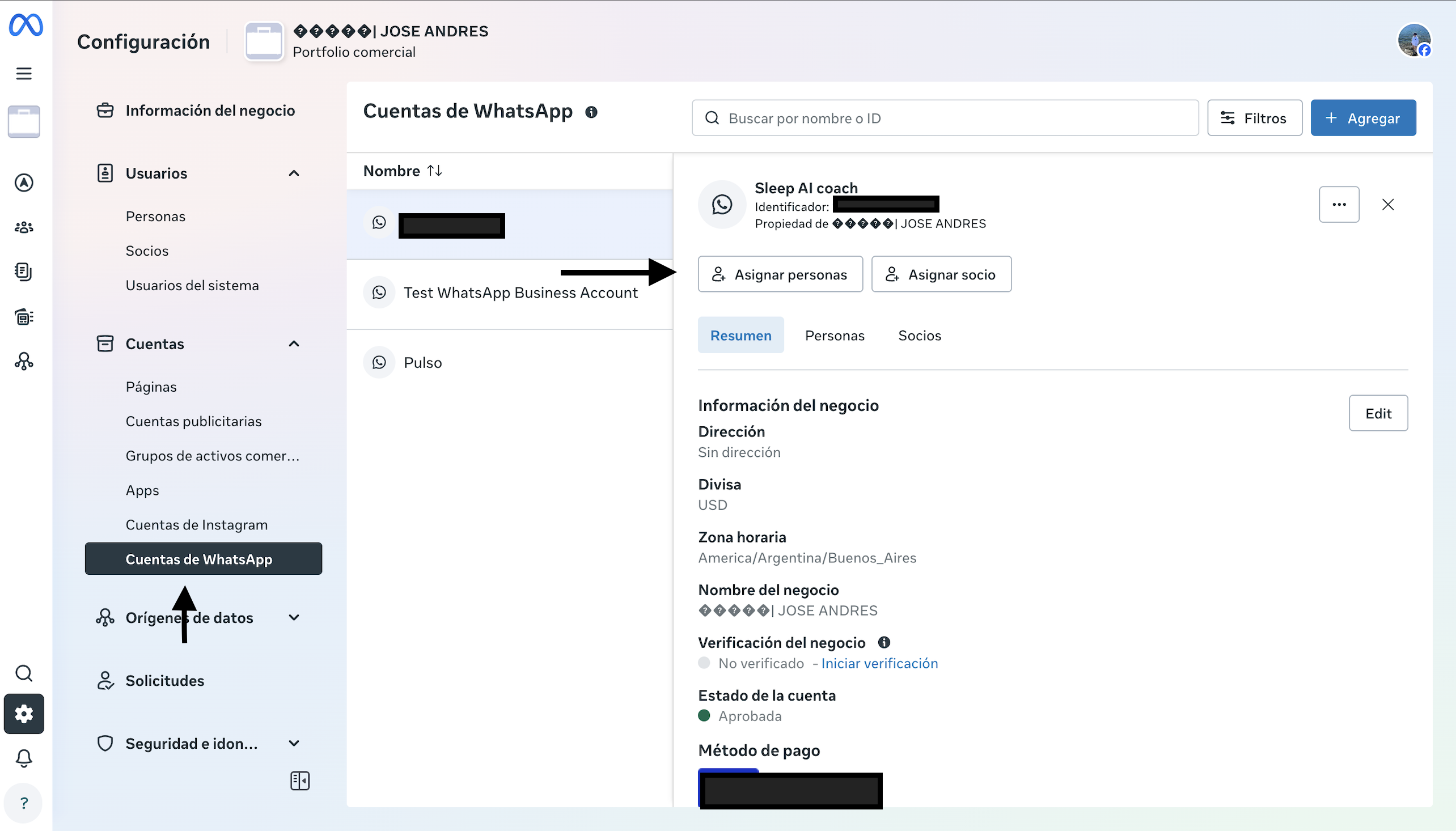
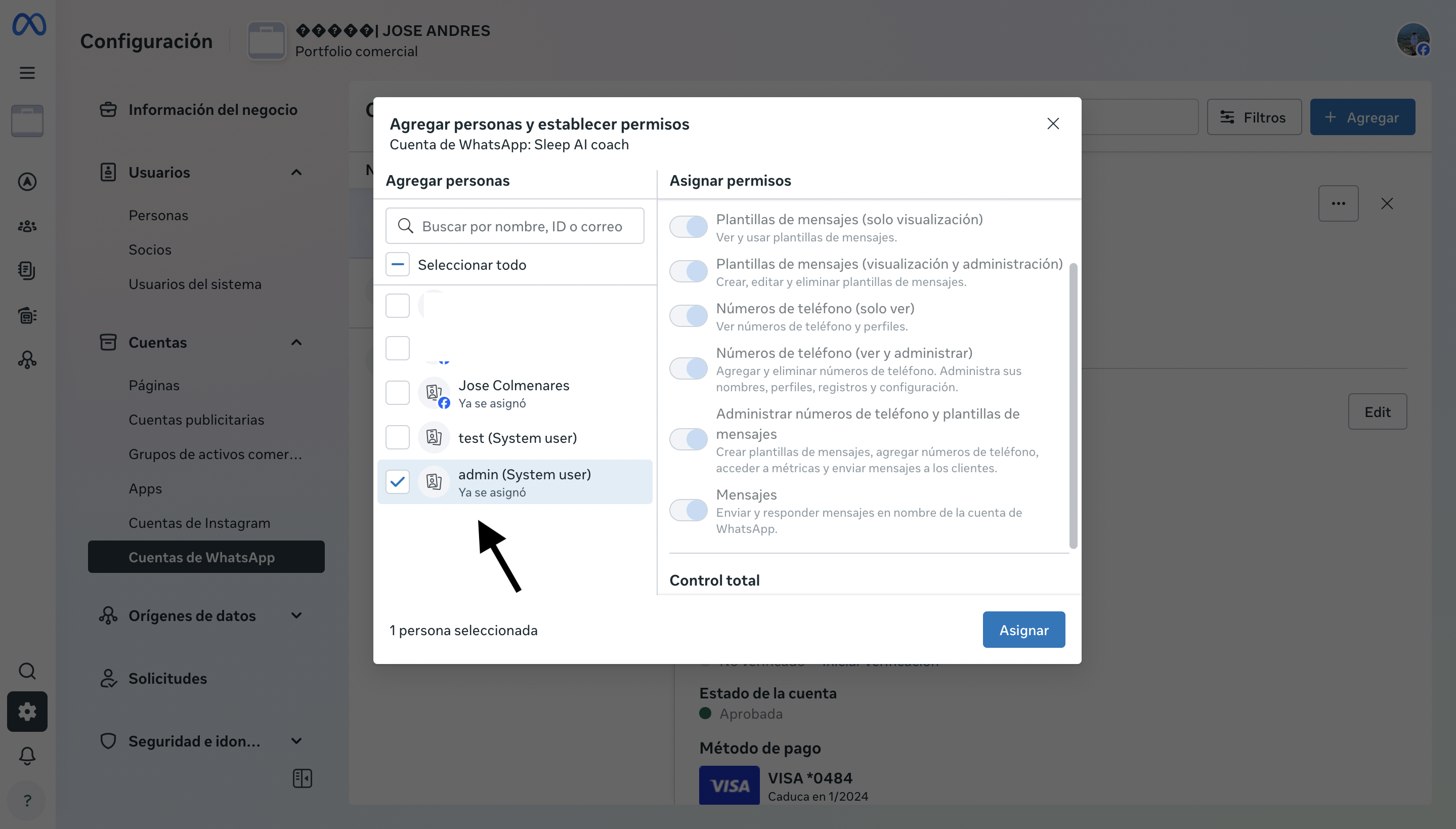
In this step we will assign permissions to the system user:
1. Go to the **"WhatsApp Account"** section
2. Click **"Assign person"**
3. Select the system user you created
4. Assign **"Full control"** to the system user
5. Click **"Assign"** to confirm permissions
## Step 9: Configure WhatsApp Account Access
In this step we will assign permissions to the system user:
1. Go to the **"WhatsApp Account"** section
2. Click **"Assign person"**
3. Select the system user you created
4. Assign **"Full control"** to the system user
5. Click **"Assign"** to confirm permissions
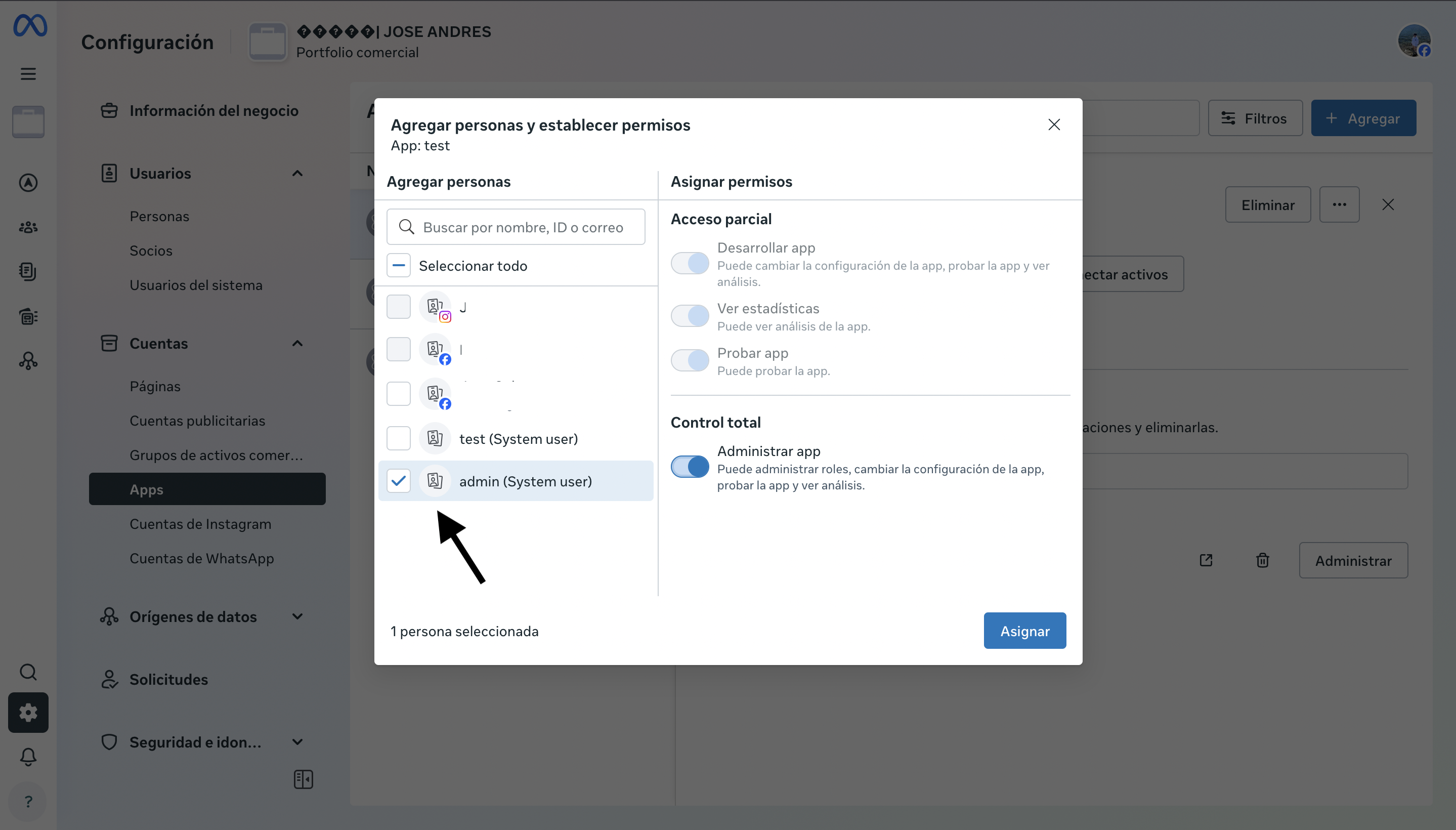
 ## Step 10: Configure Application Access
Repeat the permission assignment process for the application:
1. Go to the **"Apps"** section
2. Select your application
3. Assign **"Full control"** to the system user
4. Click **"Assign"** to confirm
## Step 10: Configure Application Access
Repeat the permission assignment process for the application:
1. Go to the **"Apps"** section
2. Select your application
3. Assign **"Full control"** to the system user
4. Click **"Assign"** to confirm
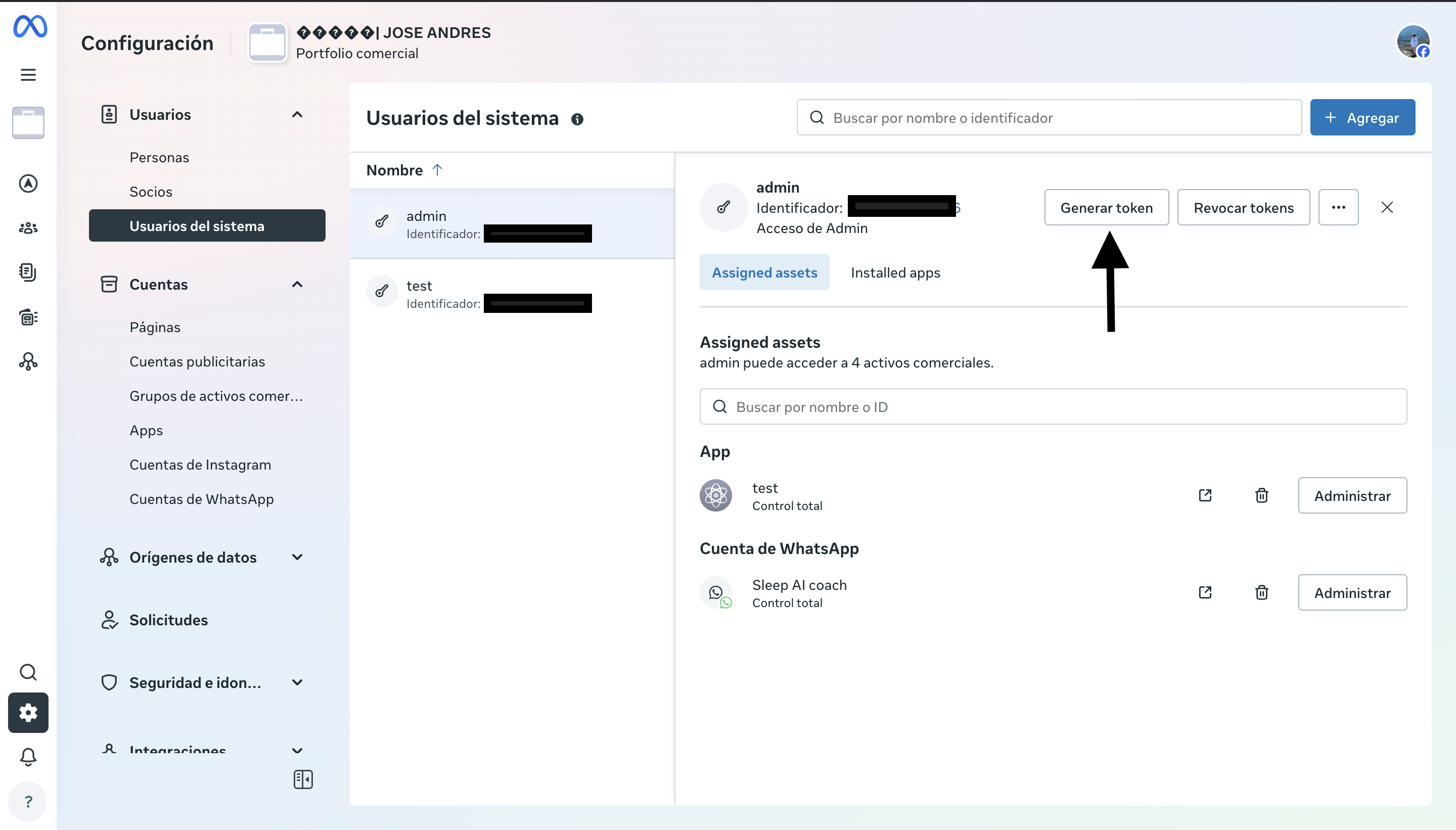
 ## Step 11: Generate the Permanent Token
Finally, we will generate the permanent token:
1. Return to the **"System Users"** section
2. Click **"Generate token"** for the user you created
## Step 11: Generate the Permanent Token
Finally, we will generate the permanent token:
1. Return to the **"System Users"** section
2. Click **"Generate token"** for the user you created
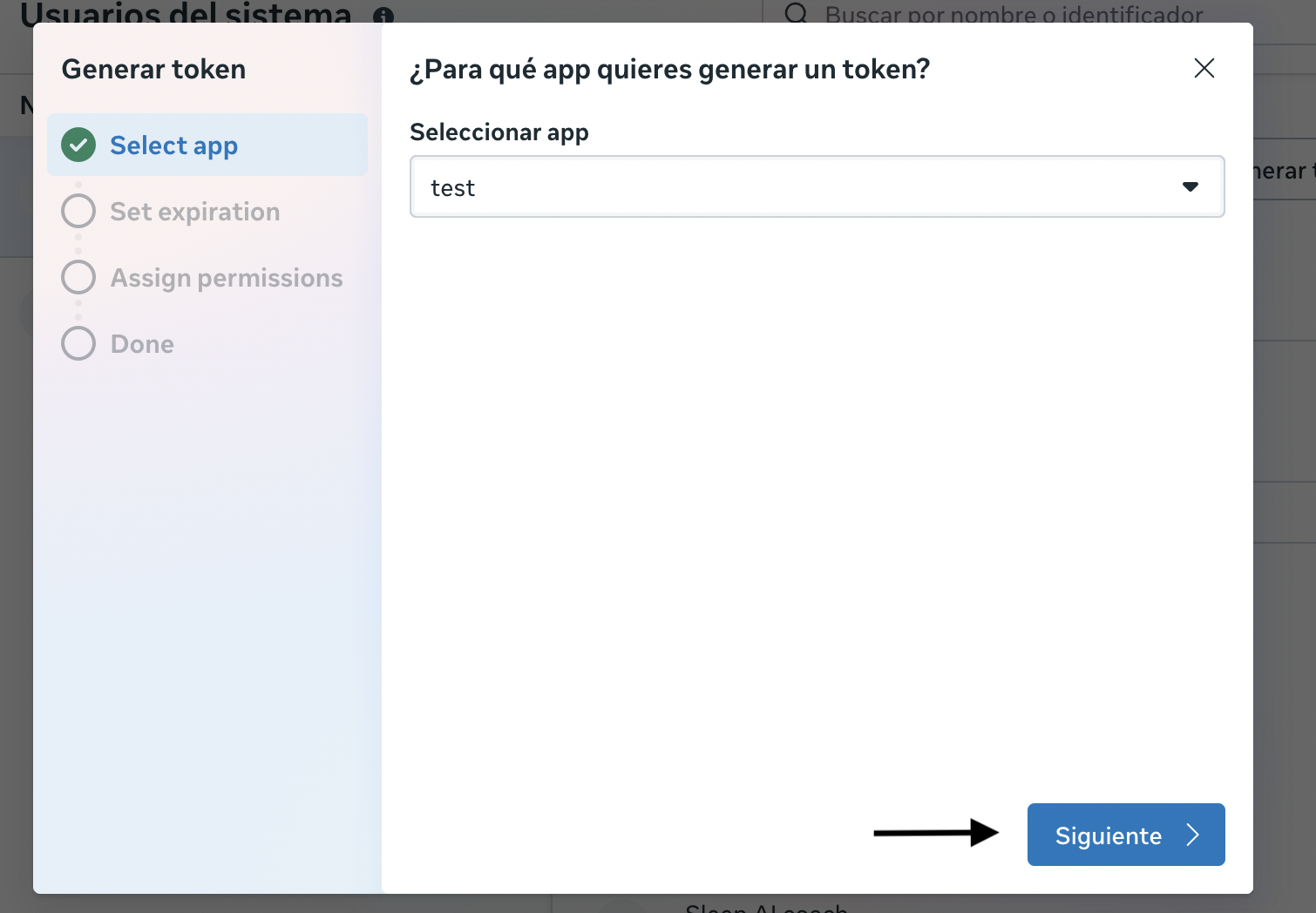
 ### Token Configuration:
3. **Select application**: Choose the app you created previously
4. Click **"Next"**
### Token Configuration:
3. **Select application**: Choose the app you created previously
4. Click **"Next"**
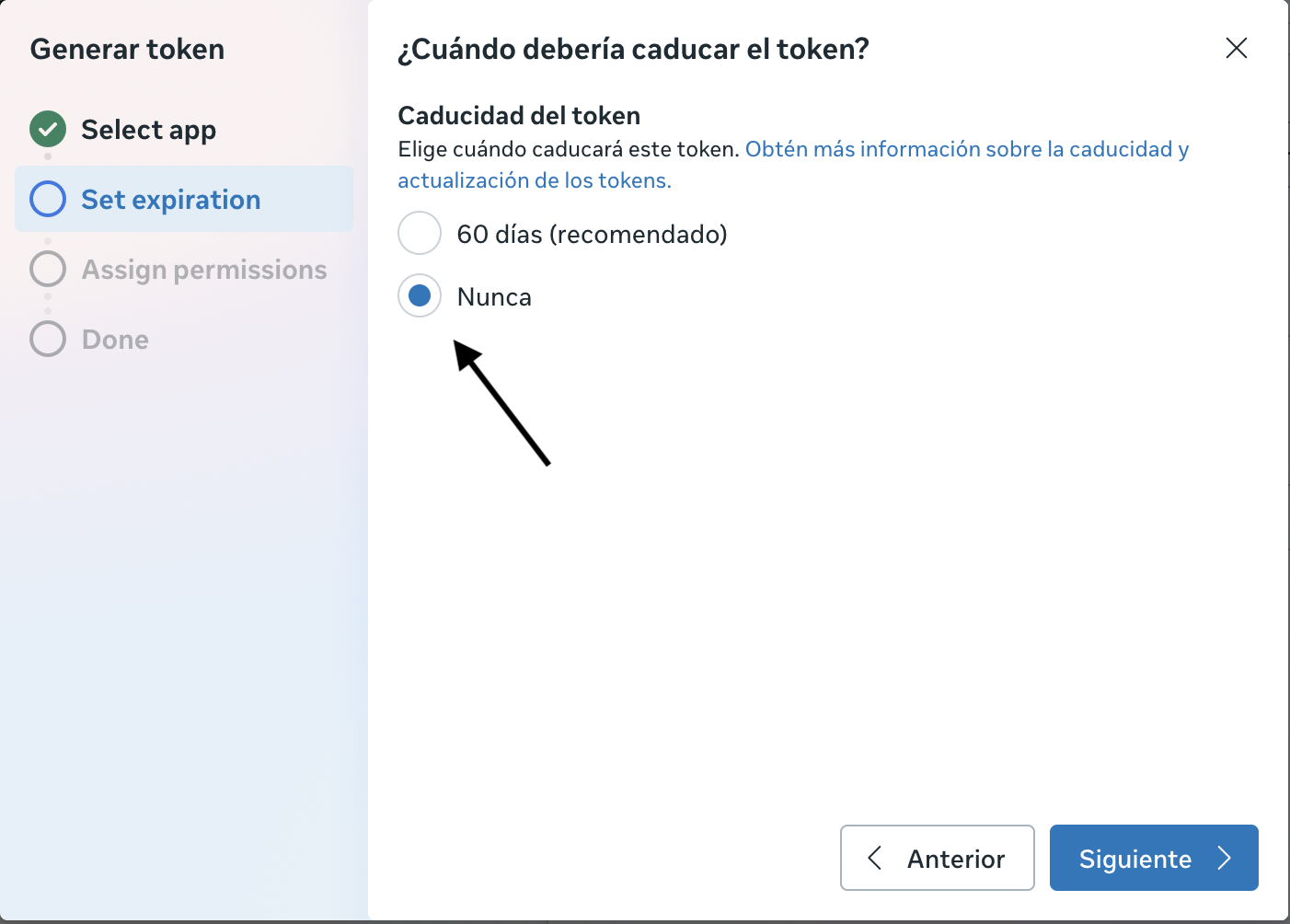
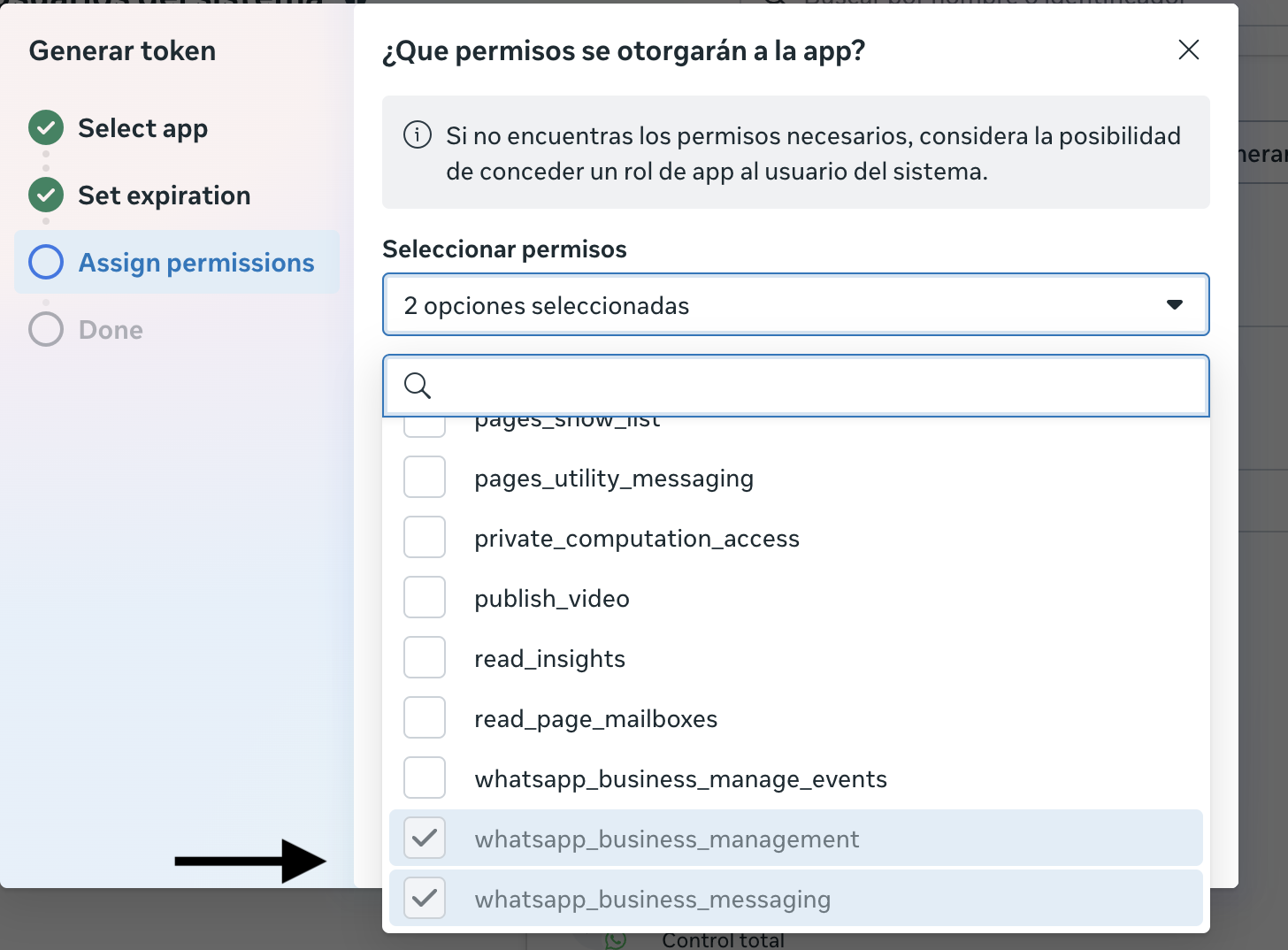
 5. **Configure expiration**: Select **"Never"** to create a permanent token
 6. **Assign permissions**: Select all necessary permissions for WhatsApp Business API
 7. Click **"Generate token"**
## Congratulations! Your Permanent Token has been Generated
Once you click "Generate token", Meta will process your request and generate your permanent WhatsApp Business API token.
### Final Steps:
1. **Copy the token**: A modal window will appear with your token. Copy it completely.
2. **Save the token securely**:
* Save it in a password manager
* Write it down in a secure place
* Configure it as an environment variable in your project
**⚠️ CRITICAL!** This token will only be shown ONCE. If you lose it, you will have to generate a new one.
### Example of how to save the token:
```bash theme={null}
# In your .env file
WHATSAPP_TOKEN=YOUR_TOKEN_HERE
PHONE_NUMBER_ID=YOUR_PHONE_NUMBER_ID
```
Your permanent token is ready to use and will not expire unless you regenerate it manually.
## Important Considerations
### Token Security
* **Never** share your permanent token publicly
* Store it in environment variables
* Use it only in your application's backend
* Consider rotating the token periodically for security
### Rate Limits
* Permanent tokens have the same limits as temporary ones
* Meta applies limits per user, application, and phone number
## Next Steps
Once you have your permanent token configured:
1. [Configure webhooks](/webhooks/overview) to receive messages
2. [Implement message sending](/messages/overview)
## Additional Resources
* [Official WhatsApp Business API Documentation](https://developers.facebook.com/docs/whatsapp/cloud-api)
7. Click **"Generate token"**
## Congratulations! Your Permanent Token has been Generated
Once you click "Generate token", Meta will process your request and generate your permanent WhatsApp Business API token.
### Final Steps:
1. **Copy the token**: A modal window will appear with your token. Copy it completely.
2. **Save the token securely**:
* Save it in a password manager
* Write it down in a secure place
* Configure it as an environment variable in your project
**⚠️ CRITICAL!** This token will only be shown ONCE. If you lose it, you will have to generate a new one.
### Example of how to save the token:
```bash theme={null}
# In your .env file
WHATSAPP_TOKEN=YOUR_TOKEN_HERE
PHONE_NUMBER_ID=YOUR_PHONE_NUMBER_ID
```
Your permanent token is ready to use and will not expire unless you regenerate it manually.
## Important Considerations
### Token Security
* **Never** share your permanent token publicly
* Store it in environment variables
* Use it only in your application's backend
* Consider rotating the token periodically for security
### Rate Limits
* Permanent tokens have the same limits as temporary ones
* Meta applies limits per user, application, and phone number
## Next Steps
Once you have your permanent token configured:
1. [Configure webhooks](/webhooks/overview) to receive messages
2. [Implement message sending](/messages/overview)
## Additional Resources
* [Official WhatsApp Business API Documentation](https://developers.facebook.com/docs/whatsapp/cloud-api)